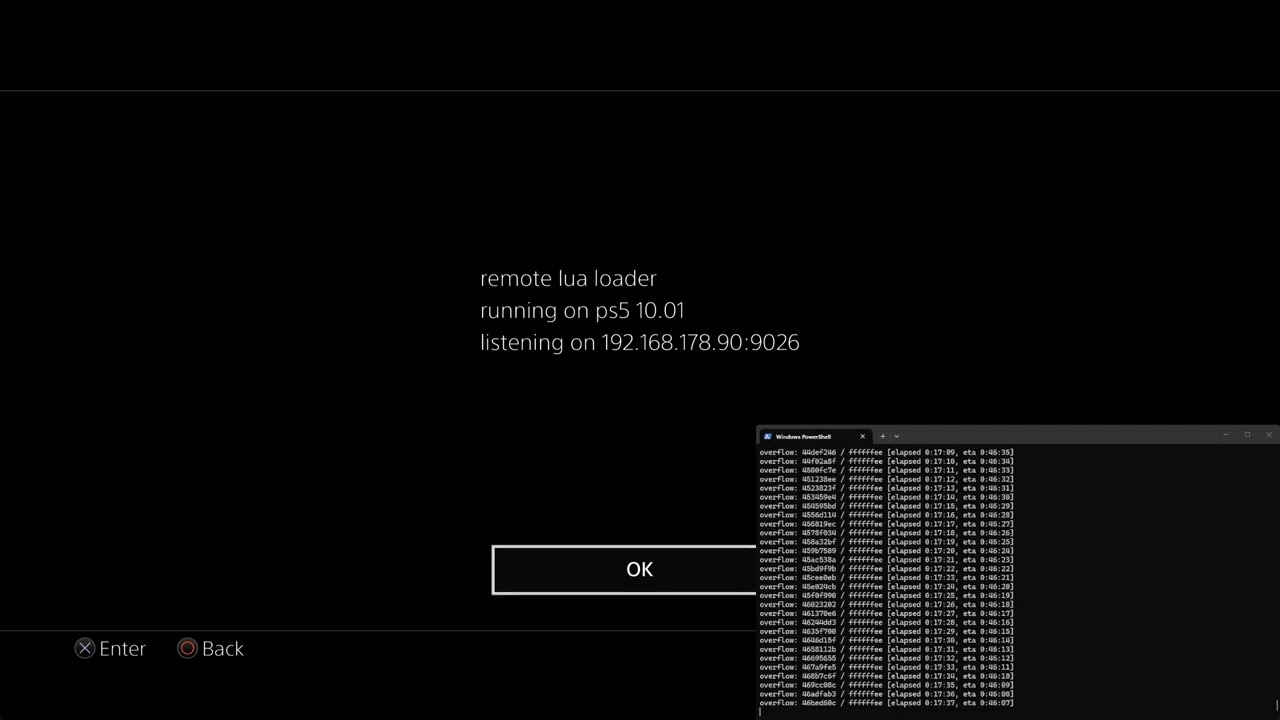
In this video I demonstrate jailbreaking the PS5 with a Japanese game called Raspberry Cube, remote lua loader and P2JB.
In this video I demonstrate jailbreaking the PS5 with a Japanese game called Raspberry Cube, remote lua loader and P2JB.
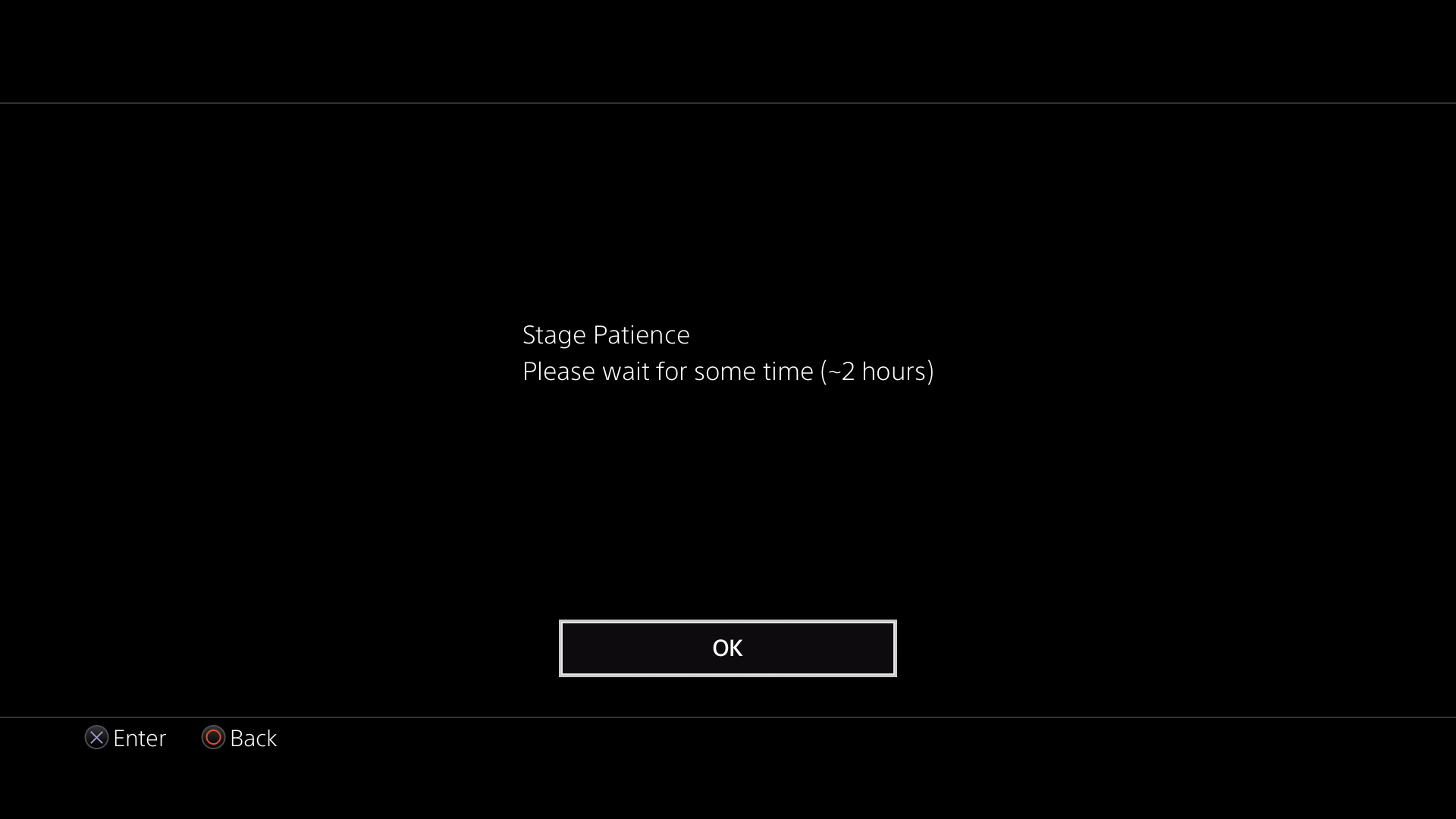
In this video I demonstrate jailbreaking the PS5 with P2JB and Luac0re 2.2d. This is the latest jailbreak which supports system software up to 12.70. This is a bruteforce exploit created by Gezine which can take up to 2 hours to fully jailbreak the PS5 and is not always successful. However, after the initial jailbreak it is possible to send the bdj_unpatch.elf payload to unpatch the blu-ray stack and then use our PS5 Jailbreak Disc for a much faster jailbreak.
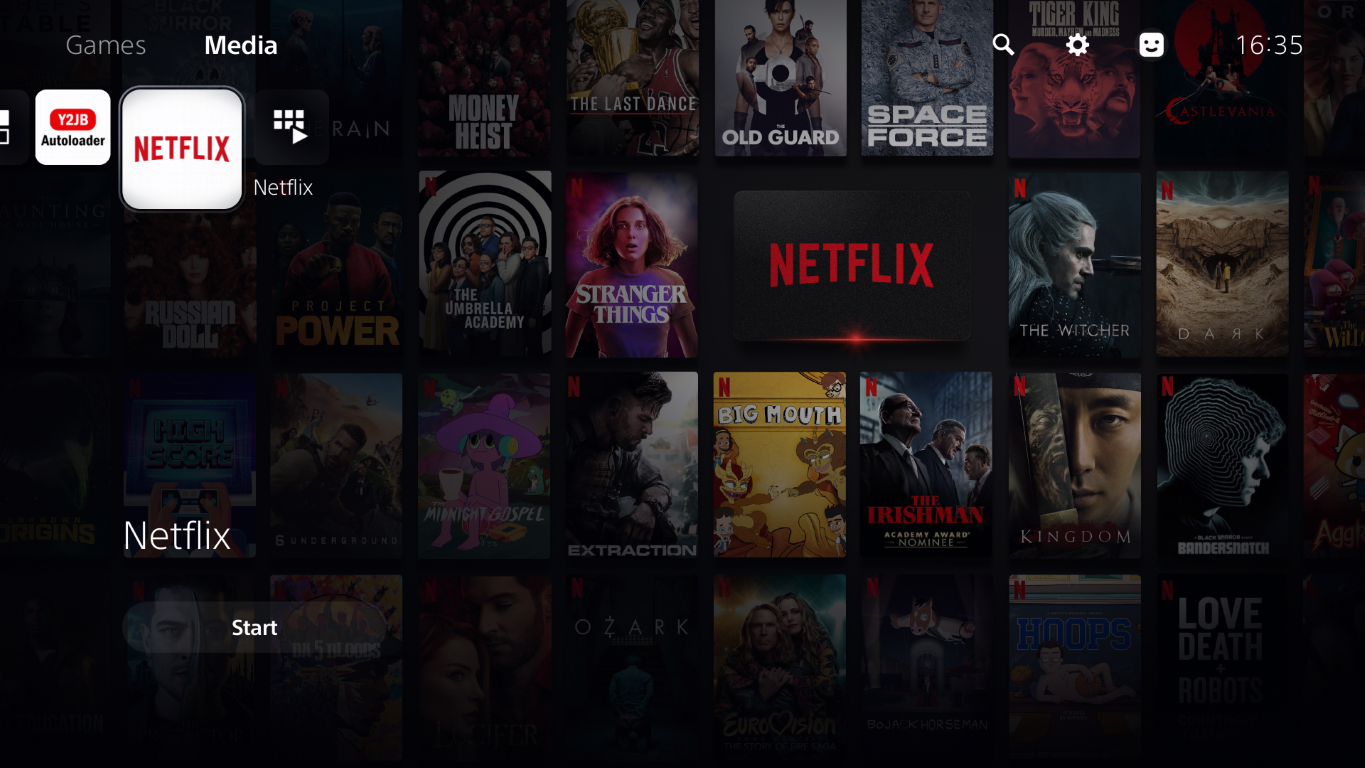
In this video I demonstrate the Netflix-N-Hack jailbreak which replaces the Netflix app and relies on a local or remote proxy server to run the exploit code. This jailbreak is compatible with PS5s running system software 10.01 or lower.
Check out our PS5 Jailbreaking Service if you are interested in jailbreaking your PS5.
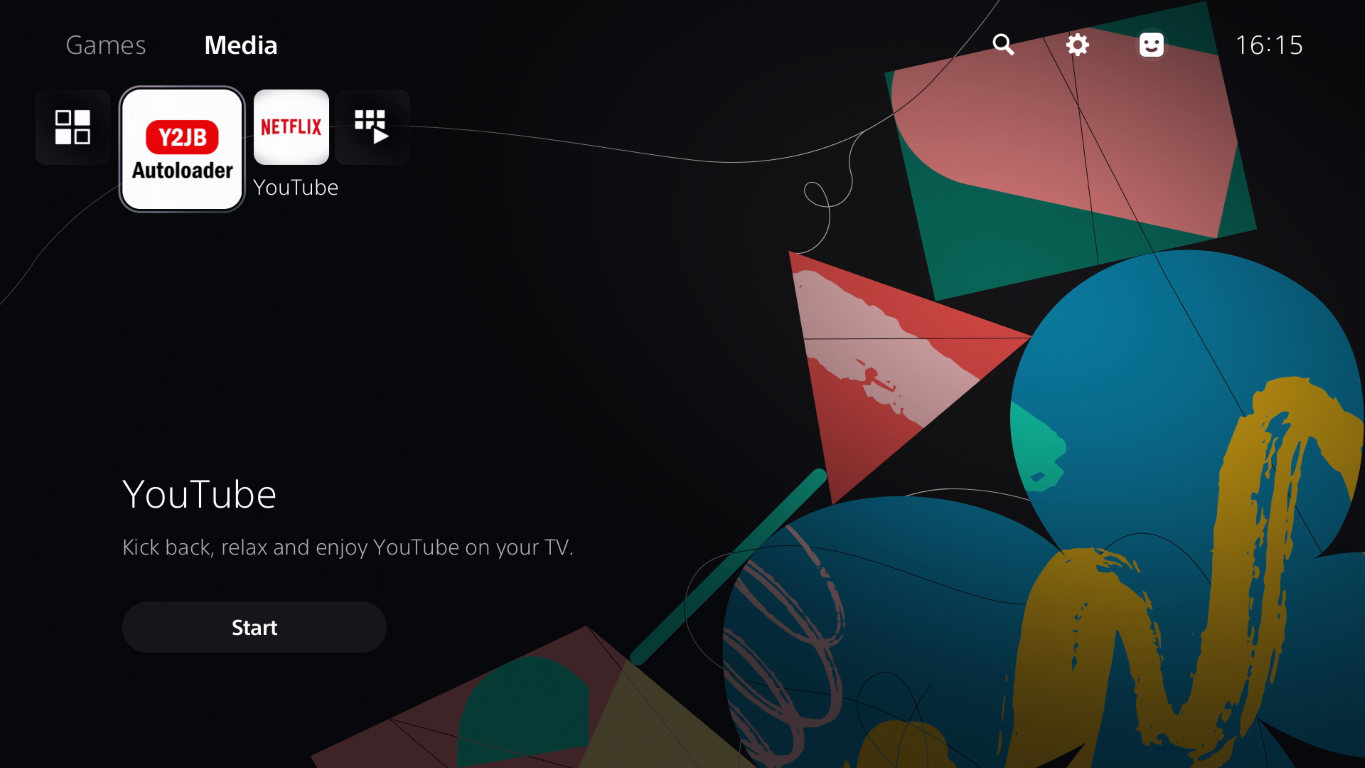
In this video I demonstrate the YTJB jailbreak which replaces the YouTube app and runs the exploit when the app is launched. This jailbreak is compatible with PS5s running system software 10.01 or lower.
Check out our PS5 Jailbreaking Service if you are interested in jailbreaking your PS5.
In this video I demonstrate the Luac0re Star Wars Racer Revenge jailbreak, which is compatible with PS5s with disc drives on system software up to 12.00.
Check out our PS5 Jailbreaking Service if you are interested in jailbreaking your PS5.
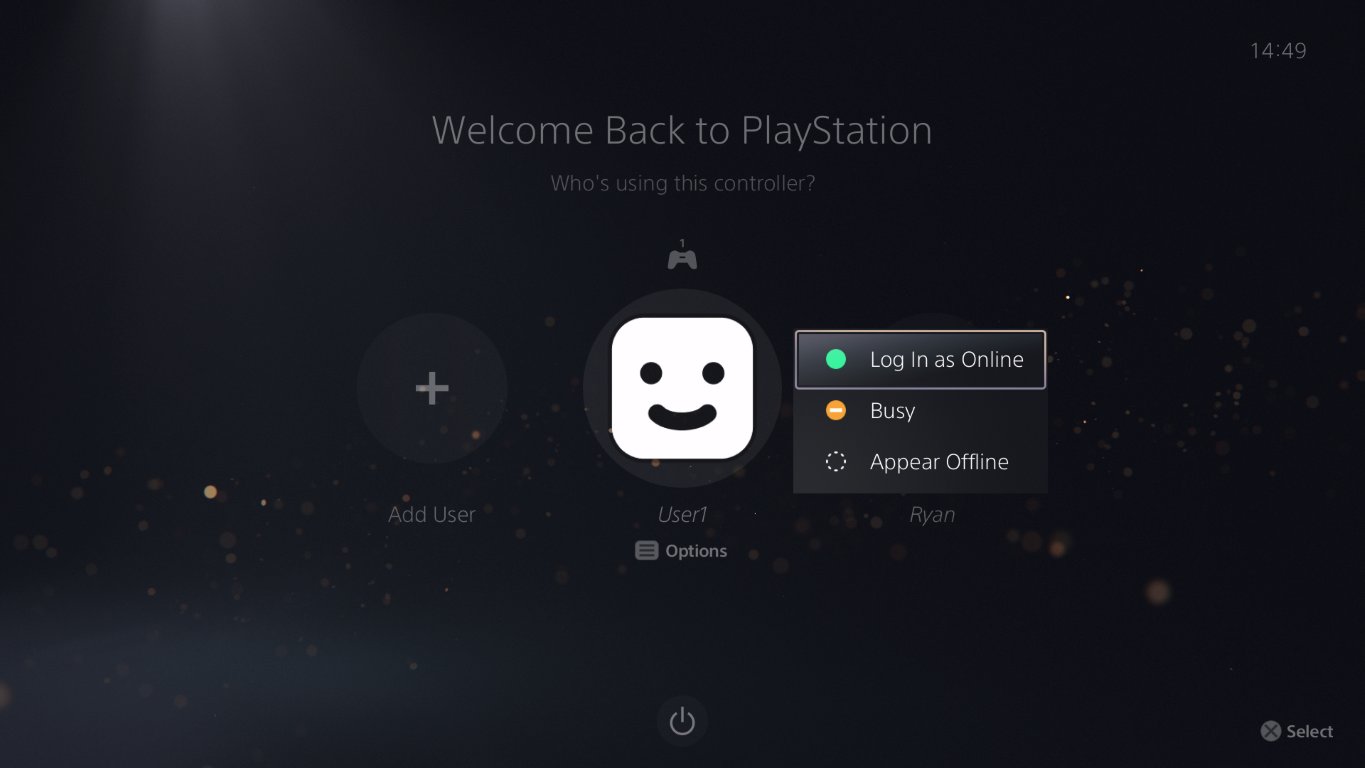
A PSN activated account is an important requirement for certain jailbreaks. For example, the Star Wars Racer Revenge jailbreak requires a PSN activated account to import a save game which contains the exploit code. Follow this short blog post or take a look at our video to check if your PS5 has a PSN activated account.
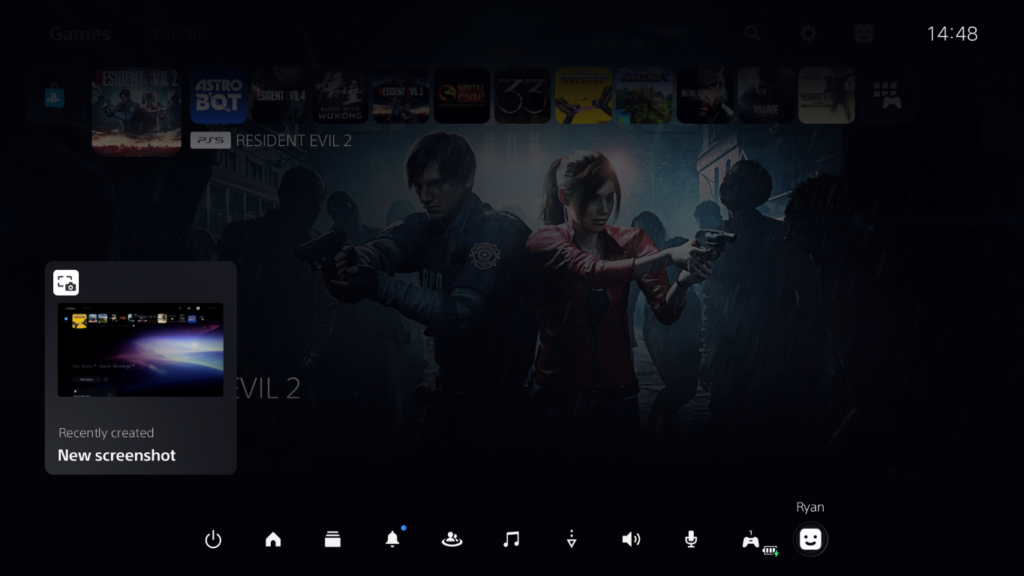
From the PlayStation 5 dashboard, press the PS button on your controller to bring up the Control Center and choose the user avatar icon.
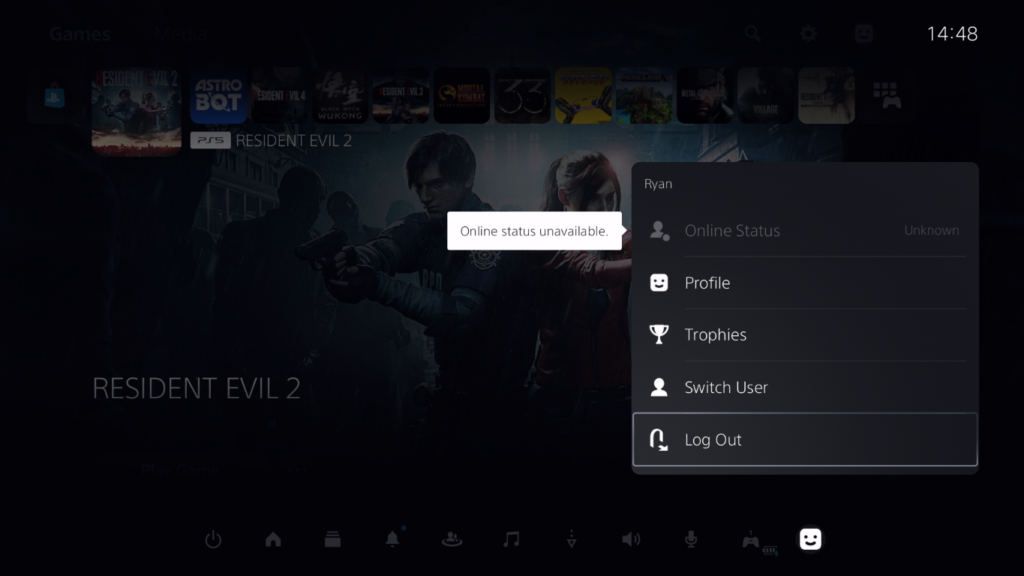
Next, choose Log Out.
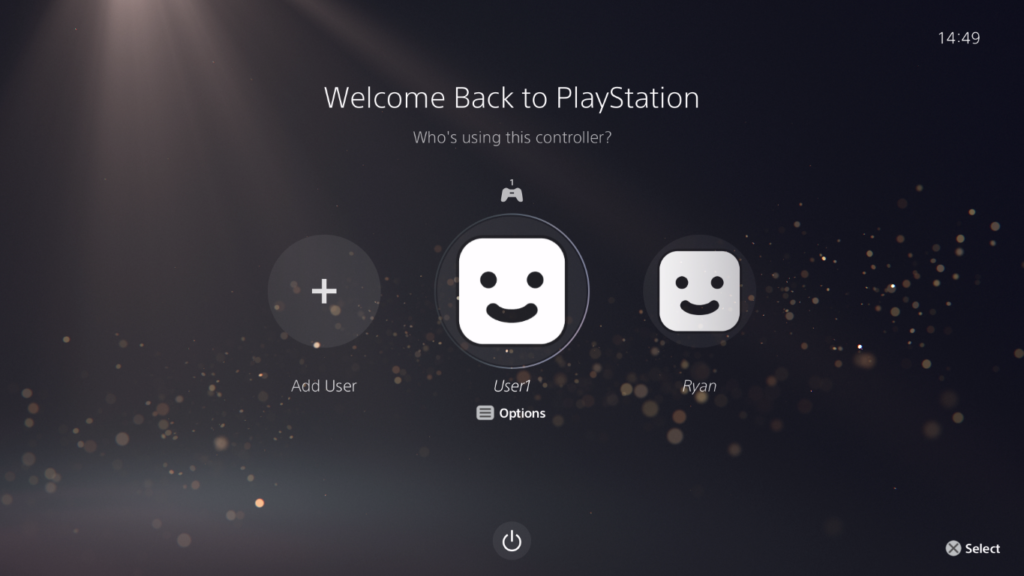
At the welcome screen, highlight any user and press the options button on your controller.
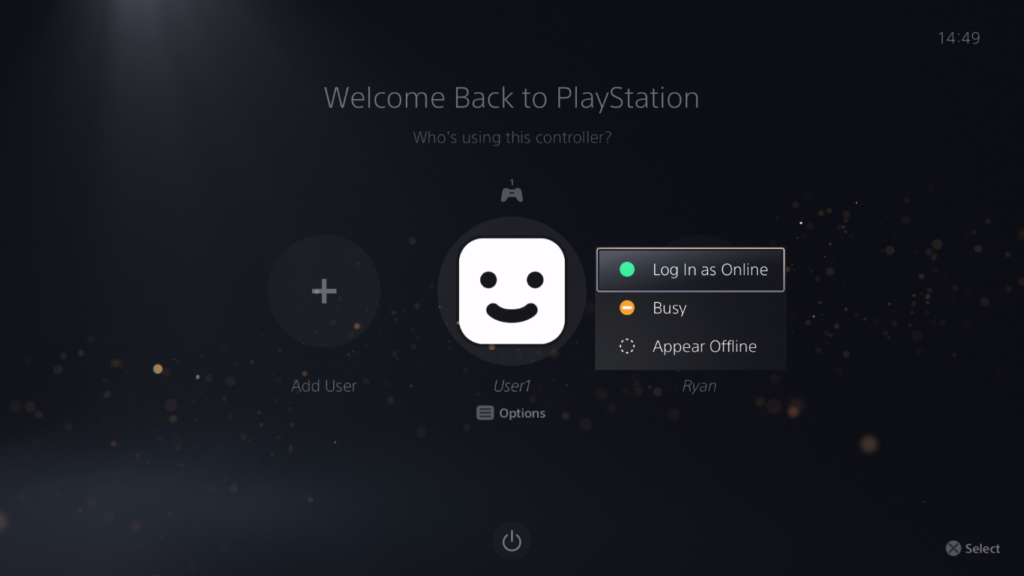
A menu should appear to toggle the online status for this user account, this means this account has been PSN activated in the past. If you don’t the options menu or online status toggle it means this is a regular offline account.
In this blog post I demonstrated how you can check for a PSN activated account on your PS5, which is an important requirement for some jailbreak methods. Check out our PS5 Jailbreaking Service if you’d like to find out more.
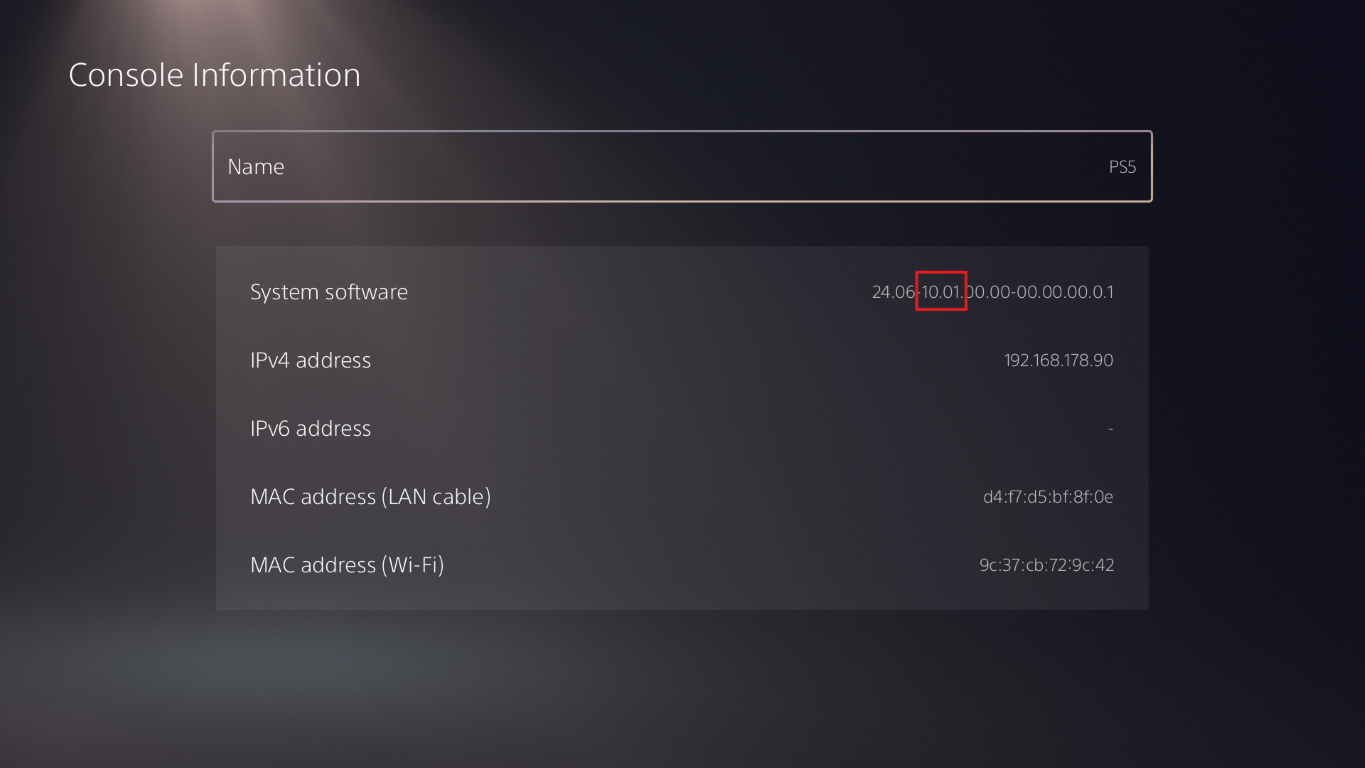
Checking your PS5 system software version is an important prerequisite for determining if your PS5 is eligible for jailbreak. Watch our video or read this short guide and we’ll show you step by step how to check your system software version.
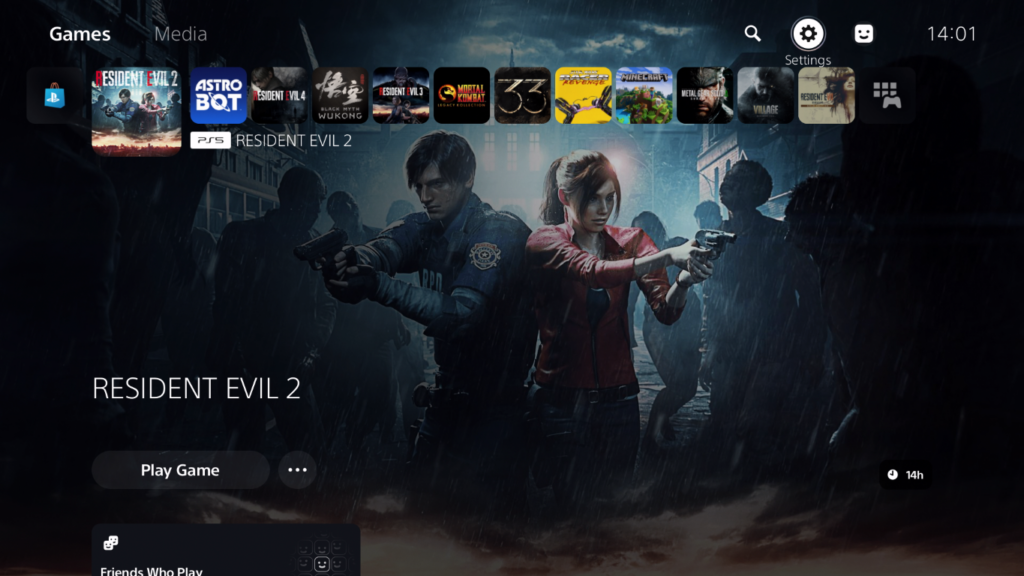
From the dashboard, choose Settings in the top-right corner.
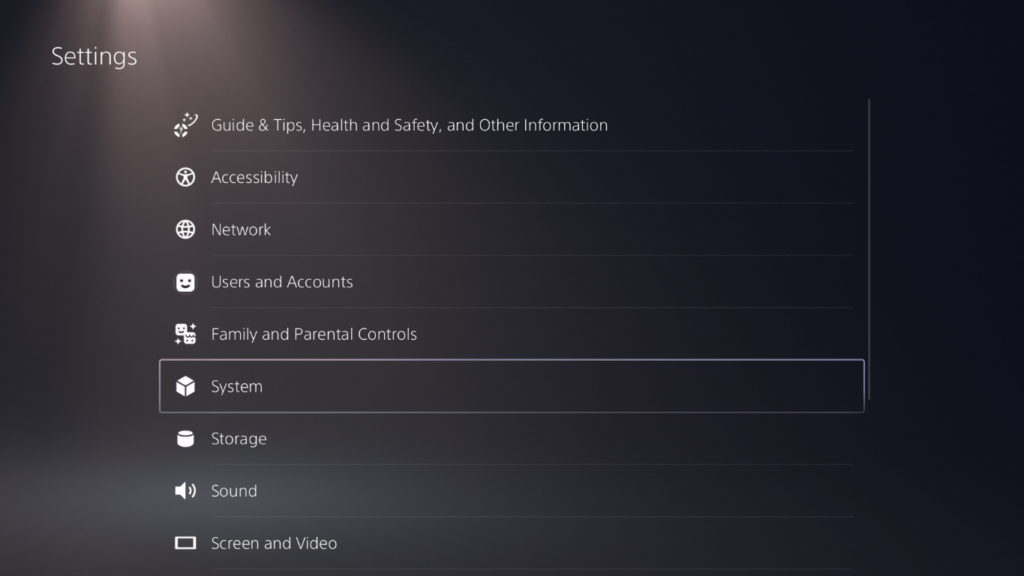
In the next menu choose System.
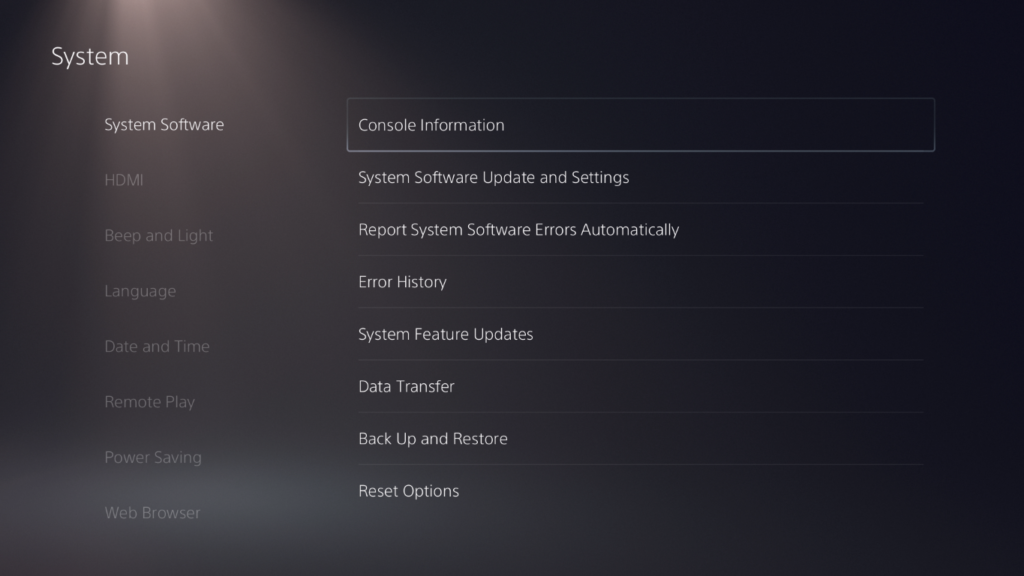
Next choose System Software and then Console Information.
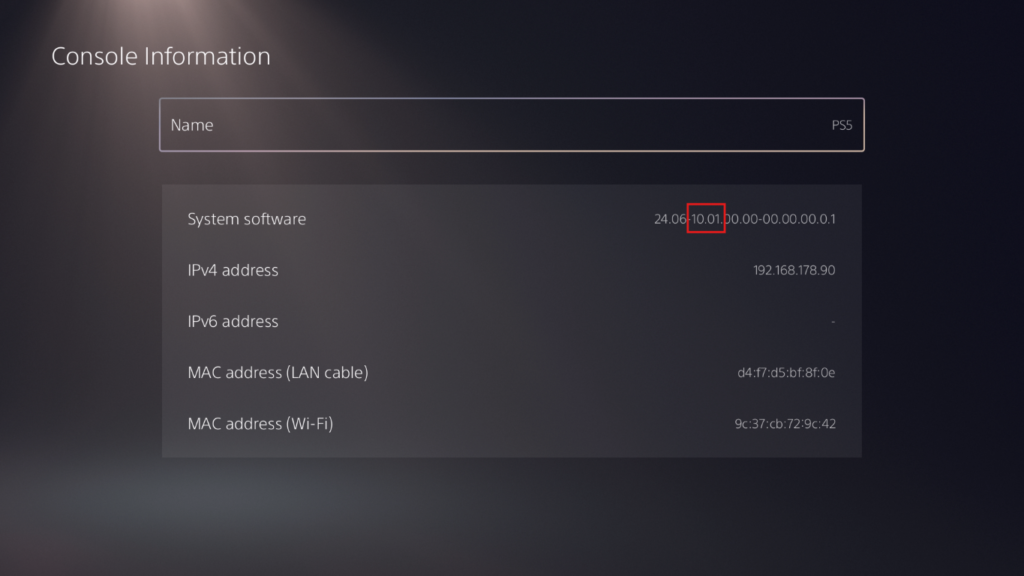
On this screen you’ll find your PS5 system software version, in my case the system software version is 10.01 which is eligible for YTJB or Netflix-N-Hack jailbreak.
If you’re interested in having your PS5 jailbroken take a look at our PS5 Jailbreaking Service.
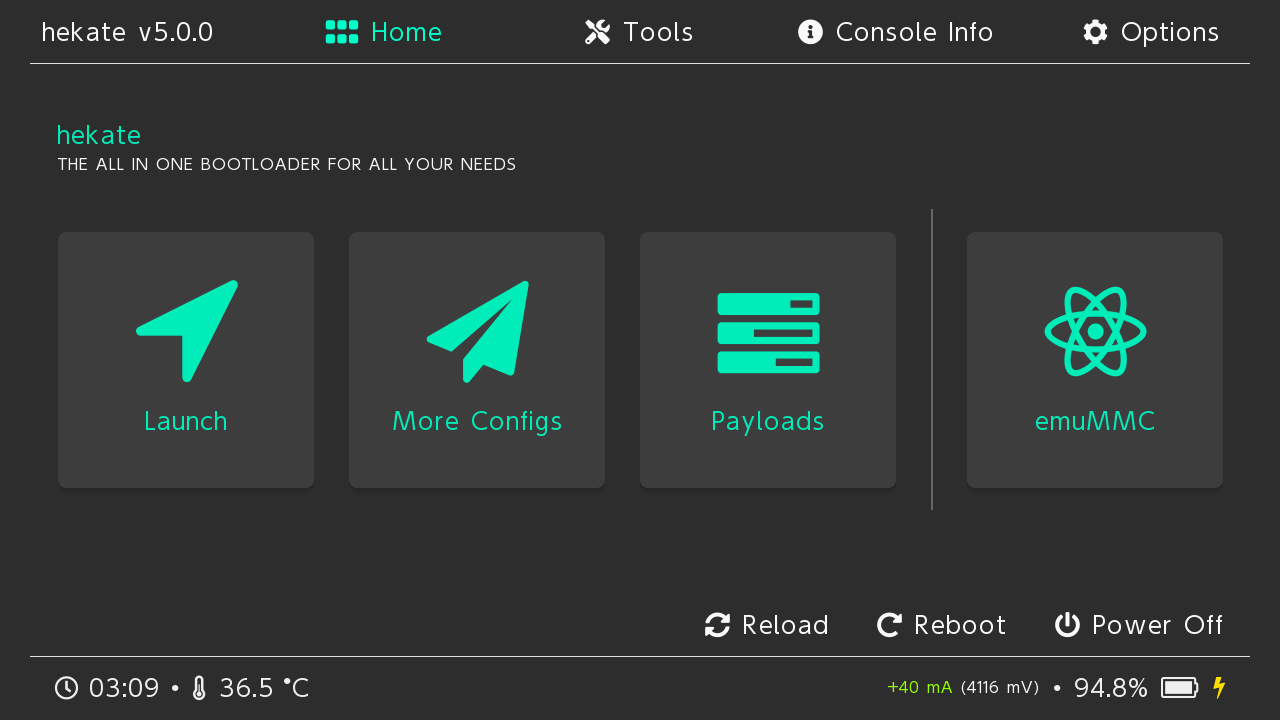
If you own a Nintendo Switch that’s running custom firmware with hekate and atmosphere you’ll run into a situation where you’ll need to update the custom/official firmware and/or hekate. This tutorial will help you safely update hekate, atmosphere and custom/official firmware using an offline method which doesn’t connect to Nintendo’s servers.
The first thing you’ll need to do is to download your target Nintendo Switch firmware https://www.google.com/search?q=nintendo+switch+firmware. Once the firmware is downloaded, boot your Nintendo Switch into hekate and plug it into your computer via USB-C cable.
In hekate navigate to Tools > USB Tools and tap SD Card. The SD card in your Nintendo Switch should now be mounted on the computer. Next, copy the contents of the firmware archive into a new folder called FW on your Nintendo Switch’s SD card.
We’ll now update the CFW using Daybreak, this is a safe method which can be performed offline and does not need to connect to Nintendo’s servers. In hekate boot into CFW by navigating to Launch > EMUMMC.
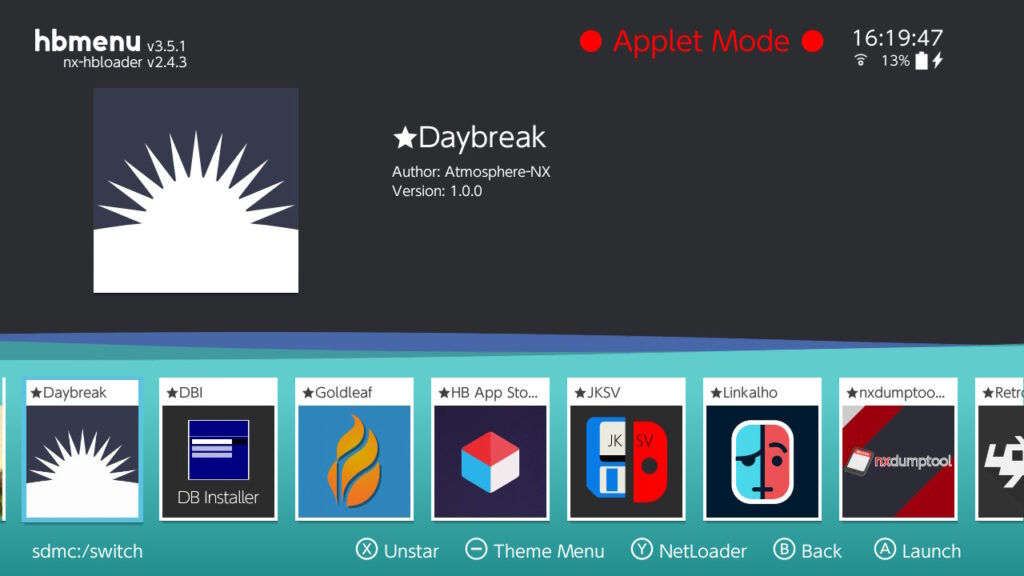
Once the system has booted select the Album icon to see a list of homebrew apps, then find and launch Daybreak.
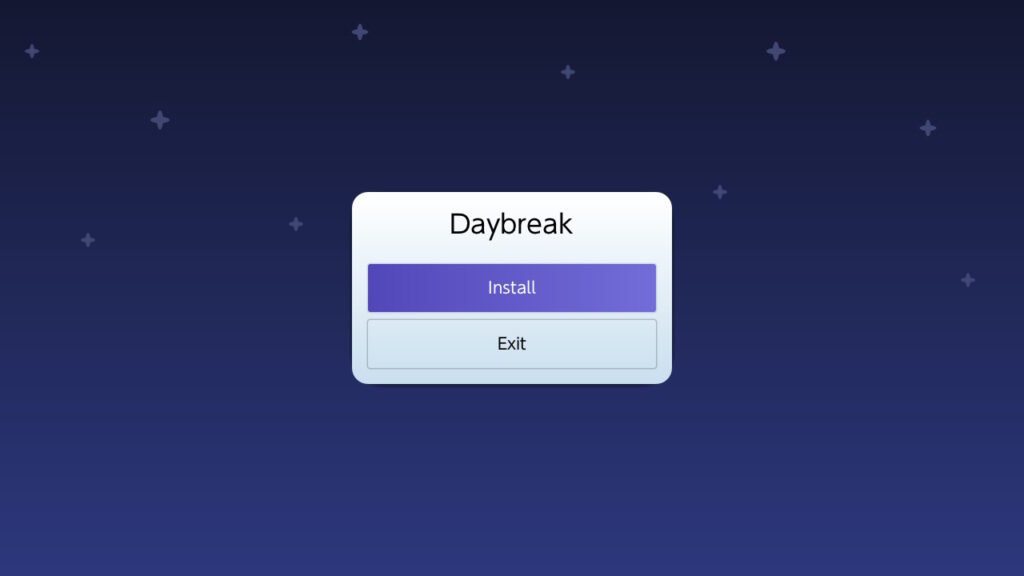
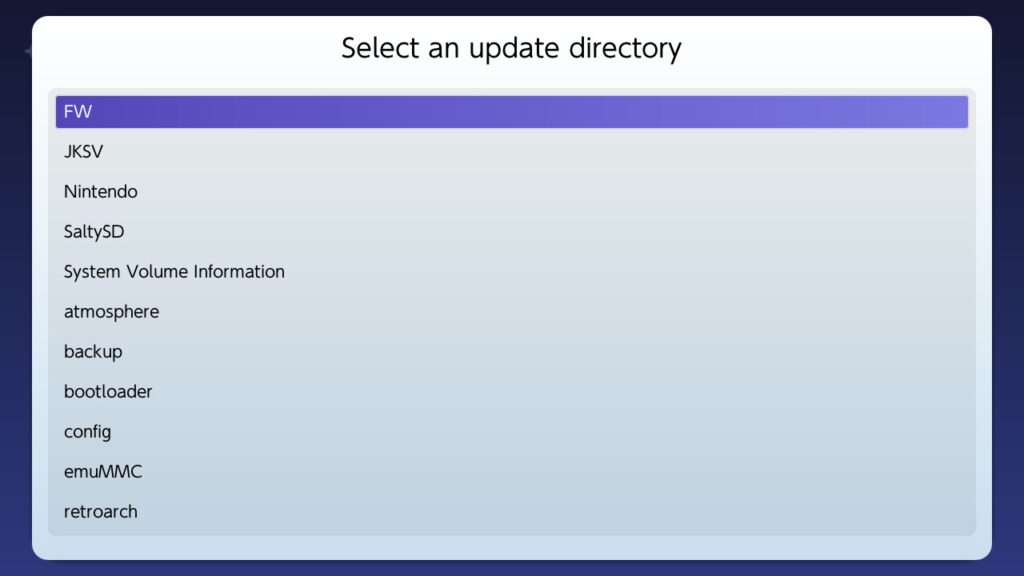
Once you’re in Daybreak, choose Install then select the FW folder located on your SD card.
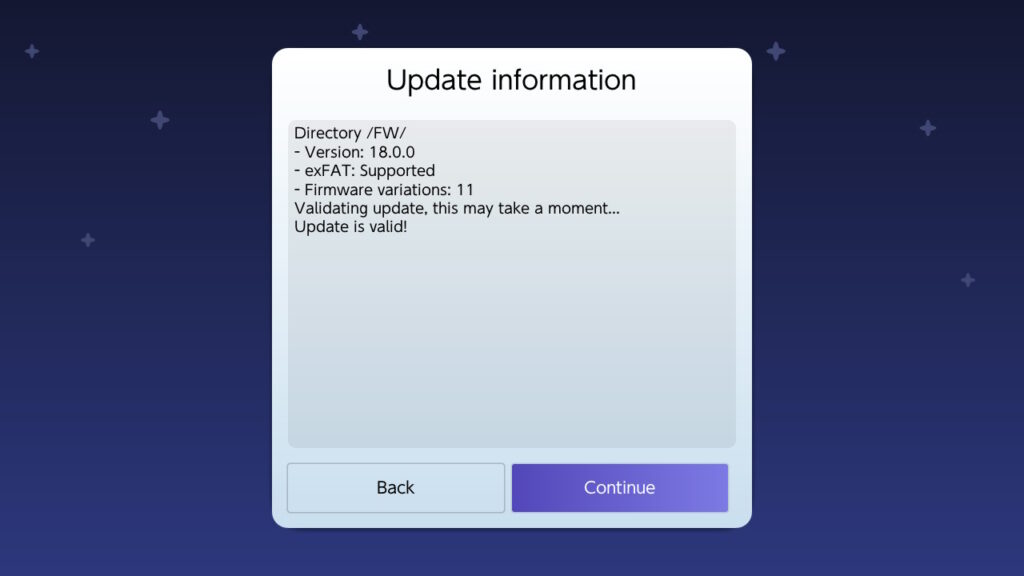
Daybreak will then validate the firmware, tap Continue when the validation is done.
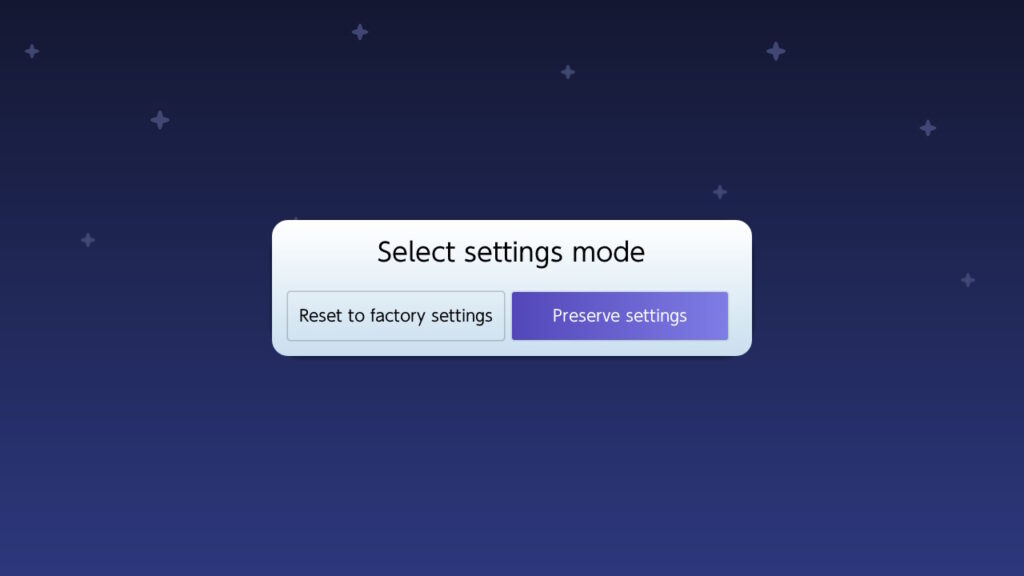
Next, choose Preserve settings.
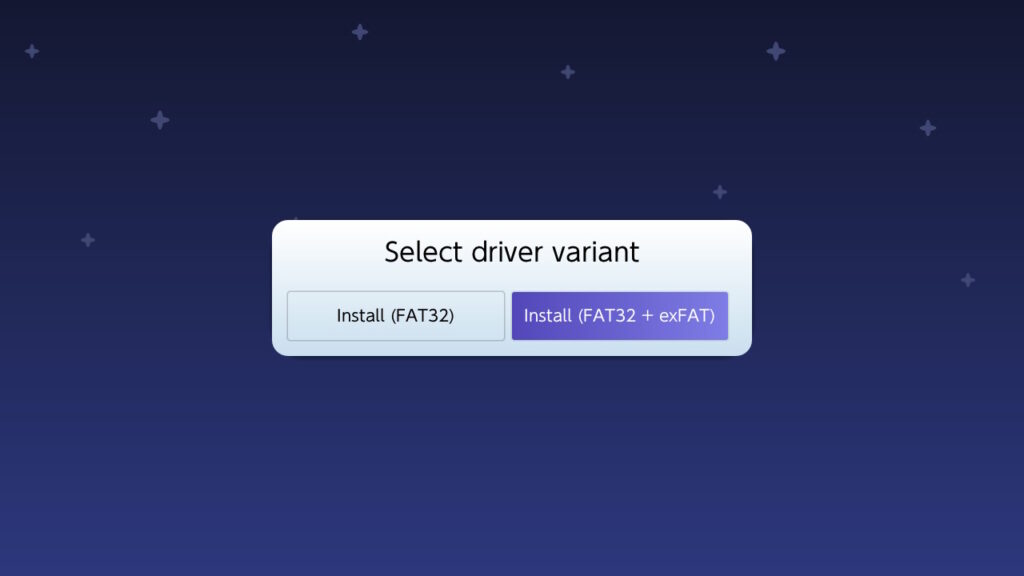
And for driver variant choose Install (FAT32 + exFAT).
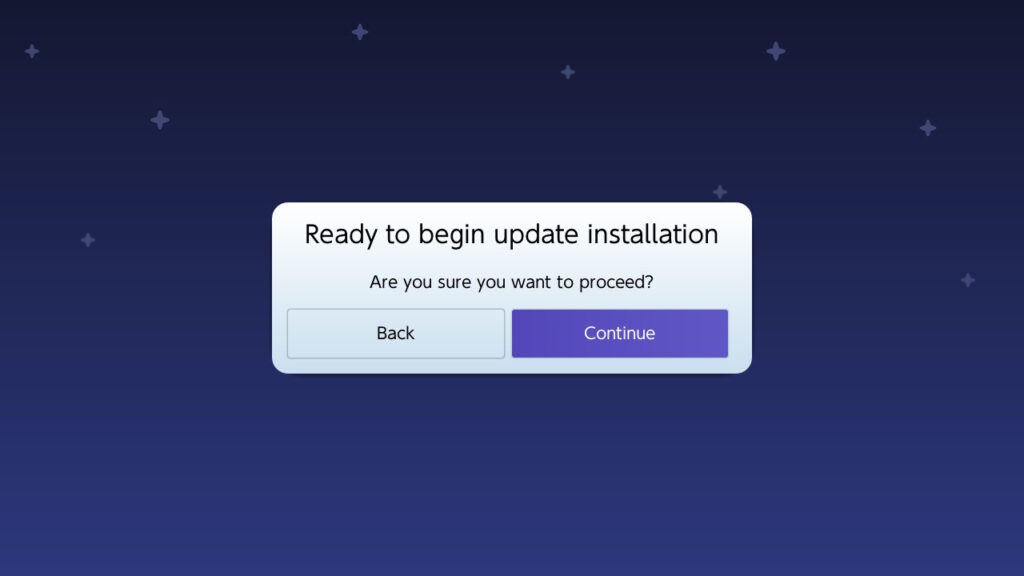
Lastly, choose Continue to start updating the custom firmware.
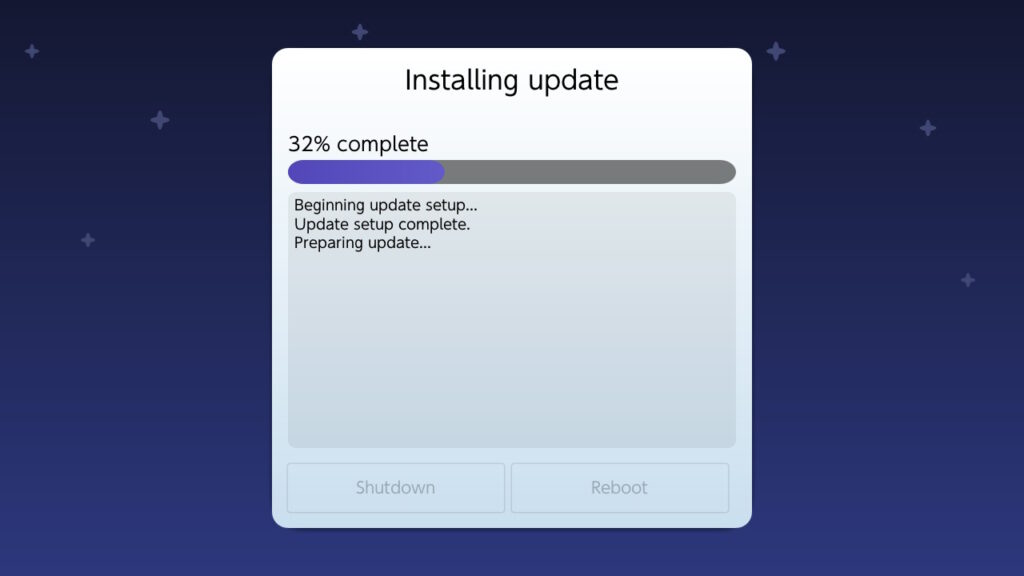
Allow the update process to finish and then choose Shutdown.
Next, boot into hekate and choose Launch > EMUMMC, if all goes well you should see that your custom firmware version has changed in System Settings > System. However, if you are upgrading from a major version for example 17.x.x to 18.x.x you may encounter an Unknown pkg1 version error when launching the EMUMMC.
If after updating you see an error message like “Unknown pkg1 version. HOS version not supported!” do not panic! This means that your current signature patches or atmosphere is incompatible with your custom firmware. To fix this we’ll need to update the signature patches, atmosphere and hekate to the latest versions.
In this section, we’ll fix the Unknown pkg1 version error which you may have encountered by updating the custom firmware using Daybreak. However, even if you haven’t encountered this error it’s always a good idea to keep things up-to-date so follow these steps to update hekate, atmosphere and the signature patches.
To get started, we’ll need to download a bunch of files and build our own HATS pack.
Once you’ve downloaded all of the above files, use 7zip to extract them into the same directory and overwrite any files/folders if you are prompted to do so.
Next, create a directory called DBI in the switch directory and move the DBI.nro into the DBI directory. Back on your Switch, boot in hekate and navigate to Tools > USB Tools and tap SD Card.
Lastly, copy the contents of the directory from above to the root of your Switch’s SD card and overwrite any files/folders if prompted to do so. Then disconnect your Switch from the computer, choose reboot from the hekate menu and then navigate to Launch > EMUMMC. If all goes well you should be running the latest custom firmware, you can verify this by going to System Settings > System.
On rare occasions you may encounter another error that reads A fatal error occurred when running Atmosphere. To resolve this, simply delete the atmosphere/contents directory on the Switch’s SD card and reboot.
If you’ve gotten this far you should now have the latest custom firmware, hekate, atmosphere and signature patches. However, your official firmware may be one or more versions behind your custom firmware which will prevent you from accessing the Nintendo shop among other things.
In this section, we’ll finish this tutorial by updating your official firmware using Daybreak. In hekate go to Launch > SYSNAND. Repeat the same steps that you did when updating the custom firmware using Daybreak, this time we are applying the update to the SYSNAND.
Once the system has booted select the Album icon to see a list of homebrew apps, then find and launch Daybreak.
Once you’re in Daybreak, choose Install then select the FW folder located on your SD card.
Daybreak will then validate the firmware, tap Continue when the validation is done.
Next, choose Preserve settings.
And for driver variant choose Install (FAT32 + exFAT).
Lastly, choose Continue to start updating the custom firmware.
Allow the update process to finish and then choose Shutdown.
Finally, in hekate go to Launch > SYSNAND and verify that you are on the latest official firmware by going to System Settings > System.